
Introduction
Last year, I realized I was spending roughly 5-6 hours per week doing the same things over and over. Renaming files. Moving downloads into folders. Copying data between spreadsheets. Opening the same apps in the same order every morning. Waiting for backups to finish manually. It sounds ridiculous when you say it out loud, but I bet you're doing the same thing right now.
So I went down a rabbit hole testing automation tools. Some were overhyped garbage. Some required coding knowledge I don't have. And some? They genuinely transformed how I work. I've tested everything from simple Windows Task Scheduler tricks to full-featured automation platforms, and I'm here to share what actually works for normal people who aren't software engineers.
Here's the honest truth: automating repetitive tasks isn't about becoming a tech wizard. It's about being lazy enough to solve your problems once so you never have to solve them again.
Start Simple: Windows Built-In Tools (That Most People Ignore)
Before you go hunting for fancy software, let me tell you about the automation tools already sitting on your PC. And I mean actually sitting there, built into Windows, completely free, and powerful enough for about 60% of what you need.
Task Scheduler: Your Silent Assistant
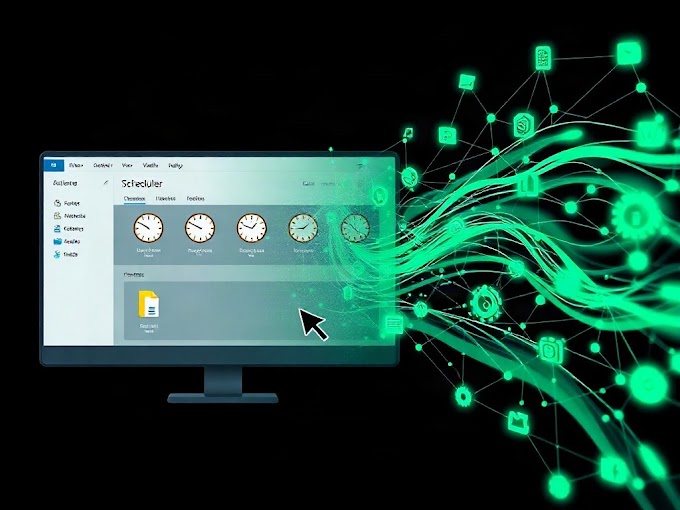
I was shocked when I realized how many of my daily tasks could be handled by Windows Task Scheduler. It's buried in your system settings, and nobody talks about it, but it's genuinely useful. You can schedule scripts to run at specific times, trigger actions based on events, and automate entire workflows without writing complex code.
Here's what I use it for: every morning at 6 AM, a batch script runs that checks for Windows updates, clears my Downloads folder of files older than 30 days, and backs up my Documents folder to my external drive. I literally just set it once and forget it. Now I wake up to a clean system.
The catch? The learning curve is real. Task Scheduler's interface looks like it hasn't been updated since Windows Vista. You need to understand batch files or PowerShell scripts to do anything interesting. But YouTube has solid tutorials, and honestly, you only need to learn this once.
PowerShell and Batch Scripts: More Powerful Than You Think
If Task Scheduler is the foundation, PowerShell is the power tool. I'm not a programmer, and I can still write scripts that automate complex workflows. The beauty is that most of what you need already exists on Stack Overflow or GitHub — you're just adapting existing code to your situation.
I wrote a PowerShell script that monitors my Downloads folder, automatically extracts ZIP files, sorts them by type, and moves them to appropriate folders. It runs every 15 minutes in the background. Zero clicks required once it's running. It's saved me from having a Downloads folder that looks like a digital graveyard.
Batch files are simpler but less flexible. I still use batch for straightforward tasks like "copy these files to this location every day at 5 PM." PowerShell handles the complex stuff.
When Built-In Tools Aren't Enough: Software That Actually Delivers
Windows Task Scheduler and scripts handle file management and scheduled tasks beautifully. But what about automating web-based workflows? Clicking through multiple apps? Managing data across different platforms? That's where dedicated automation software enters the chat.
AutoHotkey: The Unexpected Hero
AutoHotkey is absolutely wild. It's free, open-source, and lets you create custom keyboard shortcuts and automate almost any action on your PC. I've seen people do things that seem like magic — clicking a hotkey and watching their entire morning workflow execute automatically.
Here's an example from my own setup: I created an AutoHotkey script that binds to Ctrl+Shift+D. When I press it, it opens my email client, pulls up my calendar, opens my project management tool, and arranges them in a specific window layout. That's a 2-minute setup routine now running in 3 seconds. Ridiculous.
The learning curve is gentler than PowerShell, but it still requires learning syntax. The community is amazing though — someone has probably already written a script for what you want to do. Just search GitHub or the AutoHotkey forums.
IFTTT and Zapier: Automation Across Apps
These platforms connect different apps and services together. "If this happens in app A, then do this in app B." Let me be honest though — I initially overestimated how useful these would be for a regular PC user.
Zapier is incredibly powerful but expensive ($20+/month for useful features), and IFTTT has become more limited over time with their free tier. They're amazing if you live in the cloud (Notion, Google Sheets, Slack, etc.), but if you're mostly working with local files and desktop applications, you'll hit their limitations quickly.
That said, I do use IFTTT's free tier for one thing: automatically saving tweets I like to a Google Sheet. That workflow would take me 30 seconds per tweet otherwise, so the automation saves real time. Just be realistic about what these tools can do on their free plans.
RPA Tools: The Enterprise Solution That's Getting Accessible
RPA (Robotic Process Automation) sounds intimidating, but tools like UiPath and Blue Prism are becoming more user-friendly. However, I'm going to be straight with you: for most people, these are overkill. They're designed for businesses automating complex business processes. If you have a small team doing repetitive work, they're incredible. For personal use? Usually unnecessary.
There's a middle ground though. Microsoft Power Automate (part of Office 365) and Automation Anywhere offer more accessible versions. I tested Power Automate for a few weeks. It's actually decent for automating workflows across Microsoft apps, but the interface is clunky, and it took me longer to set up than it would've taken to just use AutoHotkey.
My Actual Automation Setup (Real-World Examples)
I want to give you concrete examples of what I actually use every single day, because abstract concepts don't help anyone.
Every morning, a Windows Task Scheduler task runs a batch script that deletes temporary files, clears the cache, and runs a disk cleanup. Then a PowerShell script backs up my important folders to my NAS. While that's happening, an AutoHotkey script activates with one keypress, opening Slack, my email, and Spotify in a pre-arranged layout. I'm productive and caffeinated by the time that finishes.
Throughout the day, files I download are automatically sorted by extension into the correct folders. PDFs go to Documents/PDFs, images go to Pictures, software installers go to a specific Installers folder. No manual sorting. Ever.
At 5 PM, another scheduled task runs a backup and sends me a notification confirming it's done. On Fridays, a script generates a summary of files I modified that week and logs it in a text file for my records.
Do I need all of this? Probably not. But I set it up once, tested it thoroughly, and now I benefit from it without any ongoing effort. That's the entire philosophy.
Comparing Your Options
| Tool | Best For | Learning Curve | Cost |
|---|---|---|---|
| Task Scheduler | Scheduled file tasks, backups | Medium | Free |
| PowerShell | Complex file management, system tasks | Medium-High | Free |
| AutoHotkey | Keyboard shortcuts, app automation | Low-Medium | Free |
| IFTTT | Cloud app connections | Low | Free (limited) |
| Zapier | Complex cloud workflows | Low | $20+/month |
| Power Automate | Microsoft ecosystem automation | Low-Medium | Free (limited) or $15+/month |
Mistakes I Made (So You Don't Have To)
Over-automation is real. I once automated something so aggressively that I broke a critical workflow and didn't notice for three days. Automate incrementally, test thoroughly, and document what you've done. Future-you will be grateful.
I also learned that not everything should be automated. Some tasks I thought were repetitive were actually occasions where I needed to pay attention. Automation works best for genuinely mindless tasks, not ones that require judgment.
And please, set up monitoring. One of my scheduled tasks ran for months silently failing before I noticed. Now I make scripts send me notifications or log their results.
Verdict: What You Should Actually Do
Start with Windows Task Scheduler and batch scripts. Seriously. That's free, it's powerful enough for most people, and you'll learn something useful. If you're comfortable with that after a month, explore AutoHotkey for keyboard shortcuts and app automation.
Only consider Zapier or Power Automate if you're living in cloud apps and have workflows that genuinely need cross-platform automation. For everyone else, the free tools are all you need.
The biggest win? Spend one Saturday afternoon automating your most annoying tasks. You'll buy back hours every week for the rest of the year. I'm not exaggerating when I say this has genuinely changed how I work. I went from begrudging repetitive tasks to actually enjoying a cleaner, more efficient workflow.
You've got this. Start small, test everything, and don't be afraid to delete a script that isn't working. Automation should make your life easier, not more complicated.
Published by Dattatray Dagale • 16 May 2026







0 Comments