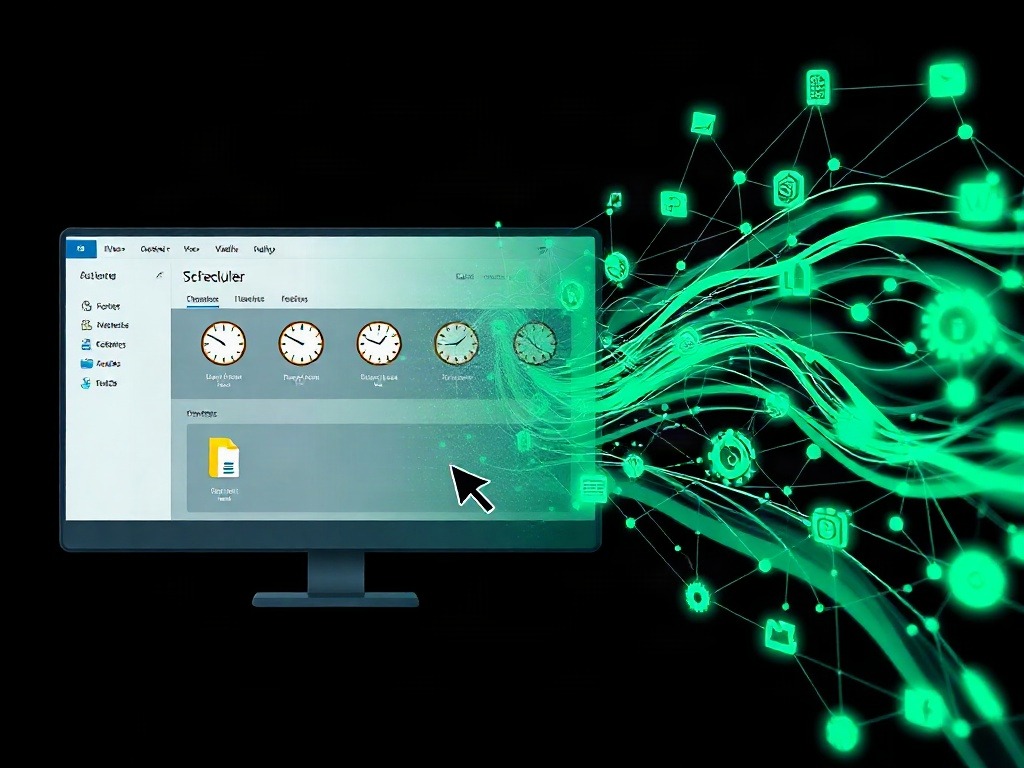
Last month, I realized I was spending roughly four hours renaming files, moving documents between folders, and filling out the same form fields on different websites. Four hours. That's a full workday wasted on tasks I could literally program a computer to do in seconds.
The frustrating part? I knew automation existed. I just didn't know where to start.
The good news: you don't need to be a programmer. You don't need to spend money. You definitely don't need to understand code. What you need is about 20 minutes and the right tool for the job. I'm going to walk you through exactly what I use, how I set it up, and which tool handles which type of task.
The Three Automation Tiers (And Which You Actually Need)
Before you download anything, understand that automation tools fall into three buckets. Most people jump straight to the fanciest option and get lost. That's a mistake.
Tier 1: Built-In Windows Features (Free, Instantly Available)
Windows Task Scheduler and File Explorer search live inside your operating system right now. Zero setup cost. Zero learning curve, honestly. I use Task Scheduler for anything time-based: "Run this backup every Sunday at 2 AM" or "Delete these temp files every Friday."
The limitation? These tools only handle local file operations and system tasks. They won't help you fill web forms or automate browser actions. But for about 40% of the repetitive work on a typical PC, they're more than enough.
Tier 2: Desktop Automation Tools (Power User, Mostly Free)
This is where AutoHotkey and Macros come in. These let you record a sequence of clicks, keystrokes, or mouse movements and play them back instantly. You're not coding. You're recording yourself doing something, then telling the tool to repeat it.
I use this tier for stuff like formatting spreadsheets, resizing images in bulk, or navigating through repetitive software UIs.
Tier 3: Workflow Automation Platforms (For Everything)
Tools like Zapier, Make (formerly Integromat), or IFTTT handle the "glue" between apps. When an email arrives with an attachment, automatically save it to Google Drive. When you star a tweet, log it to a spreadsheet. These tools talk to each other. They're more expensive and require actual setup, but they're genuinely powerful.
Honestly? Most people start at Tier 3 and get overwhelmed. Build your automation foundation with Tiers 1 and 2 first. You might never need Tier 3.
Using Windows Task Scheduler to Automate Boring System Tasks
Task Scheduler is the first place I go when I need something to happen automatically on a schedule. Setting it up takes maybe five minutes. Here's exactly what I do:
Step 1: Open Task Scheduler
Press Windows Key + R. Type "tasksched.msc" and hit Enter. (Or search "Task Scheduler" in the start menu—same thing, slower.)
Step 2: Create a Basic Task
On the right side, you'll see "Create Basic Task." Click it. Give it a name. I use something obvious like "Weekly Backup of Documents."
Step 3: Set the Trigger
This is where you define when the task runs. "Daily?" "Weekly?" "Every Tuesday at 3 PM?" Pick your timing. I mostly use weekly triggers because I don't need things happening constantly.
Step 4: Define the Action
Here's the key part. You'll choose "Start a Program." Now you paste the command or script you want to run. For file operations, you might use a batch file (.bat file). For backups, you could point it to a backup application like Macrium Reflect.
Step 5: Test It Manually First
Before you set something to run automatically, right-click the task and select "Run." Make sure it actually does what you expect. I learned this the hard way after accidentally deleting files I needed.
Real Example: Automatic Weekly Backup
Here's what I actually use this for. Every Friday at 10 PM, my most important folders back up to an external drive. Zero effort. I set it once, and it's been running for 18 months.
The command I use points to a batch file that runs Robocopy (a built-in Windows tool for copying files). If you don't know batch, you can use simpler approaches—just drag folders into Robocopy's interface, export the command, and paste it into Task Scheduler.
Recording Clicks With AutoHotkey (The Macros Approach)
AutoHotkey is free, open-source, and genuinely underrated. A lot of people think you need to write code. You don't. You can record actions like a macro.
I use this for repetitive UI-based tasks. Resizing 50 product photos? Recording a series of Photoshop clicks? Navigating through a clunky internal company software to enter data? AutoHotkey handles all of it.
Setting Up AutoHotkey: The Simple Path
Download and Install
Go to autohotkey.com. Download version 1.1 (not v2, which changed the syntax—v1.1 has more tutorials online). Install it normally.
Create a Script File
Right-click on your desktop. You'll see "New" → "AutoHotkey Script." Name it something like "RenameFiles.ahk"
Record Your Actions (Kind Of)
Here's the honest part: AutoHotkey doesn't have a built-in recorder like some tools. But you can write simple commands that do what you need. For example:
F1::
{
  MouseClick, Left, 100, 200
  Sleep, 500
  Send, Hello World
  Return
}
This script says: when you press F1, click at coordinates (100, 200), wait 500 milliseconds, then type "Hello World." It's not code—it's instructions. You can build these step by step.
Find Click Coordinates
The tricky part is figuring out the X and Y coordinates where you want to click. AutoHotkey includes a tool for this. Search your start menu for "AutoHotkey Window Spy." Open it, hover over buttons or fields, and it shows you the exact coordinates.
Real Example: Bulk Image Resizing
I had 200 product images that needed to be resized to exactly 800x600 pixels, then saved with a specific naming convention. Doing this manually would take a full day.
I created an AutoHotkey script that:
- Opens each image in IrfanView (a lightweight, scriptable image viewer)
- Resizes it to my dimensions
- Saves it with the naming pattern I need
- Moves to the next image
The script ran in about 15 minutes for all 200 images. Would've taken me six hours manually.
Web-Based Automation With Make (Formerly Integromat)
This is where the real power shows up. Make connects different web apps and automates workflows across them. Email → Spreadsheet. Form submission → Notification. Database entry → Invoice generation.
Make has a free tier (1,000 operations per month, which is generous). The paid plans are reasonable if you automate a lot.
How I Use Make in Real Life
I get client inquiries through a Google Form. Every submission used to require me to manually create a task in my project management tool, send a follow-up email, and log the contact info in a spreadsheet.
Now? Make does all three automatically the moment the form is submitted. The form submission triggers a three-step workflow:
- Create a new task in my project manager with the client's name and details
- Send me a filtered notification (only important info, not the full form)
- Add the contact to a Google Sheet for record-keeping
I check Make's logs once a month to make sure nothing broke. That's it.
Building Your First Make Automation
Sign Up and Connect Apps
Go to make.com, sign up (free). The first thing Make asks is which apps you want to connect. If you use Gmail, Google Drive, Slack, Zapier, Stripe, or basically any mainstream SaaS tool, Make integrates with it.
Create a Scenario (That's Make's Word for Workflow)
Click "Create a new scenario." You'll see a blank canvas. Add your first module by clicking the plus sign. Choose your trigger (the thing that starts everything). For me, it's usually "New Google Form Response" or "New Email."
Add Actions
After your trigger, add the actions you want to happen. "Create a row in this spreadsheet." "Send an email." "Post to Slack." The interface is visual—no code required. You drag connections between modules.
Map Your Data
This is where you tell Make which data from step 1 goes into step 2. If a form collects "Name," "Email," and "Project Type," you map those fields into your spreadsheet columns or email template. Make shows you the available fields. You click and choose.
Test It
Run a test before you activate. Submit a test form response, and watch Make execute the workflow. If something's wrong, you'll see the error and can fix it.
| Automation Tool | Best For | Cost | Learning Curve |
|---|---|---|---|
| Windows Task Scheduler | File backups, scheduled deletions, system maintenance | Free (built-in) | Very low |
| AutoHotkey | UI-based tasks, bulk file operations, app navigation | Free | Low to medium |
| Make (Integromat) | Cross-app workflows, form processing, data sync | Free tier (1k ops/month) | Low (visual interface) |
| Zapier | Web app integrations, multi-step workflows | Free tier limited; paid starts at $19/month | Very low |
Automation Ideas You're Probably Not Using (Yet)
Here are the specific tasks I automated that most people still do manually:
Email Sorting and Filing
I created rules that file emails by project, client, or priority instantly. Invoices go to one folder. Client feedback goes to another. Spam disappears. When an email arrives with specific keywords, it gets labeled and forwarded somewhere. Gmail filters handle this beautifully, but most people just leave everything in the inbox.
Screenshot Organization
Every screenshot I take automatically goes into a dated folder on my cloud storage. One Windows Task Scheduler job watches my Screenshots folder and moves files. No thinking required.
Social Media Monitoring
I set up Make to monitor mentions of my name and business across multiple platforms, then log them to a spreadsheet. I don't scroll Twitter hunting for mentions anymore. They come to me.
Invoice Generation
When I log hours in a timesheet, Make automatically generates an invoice in a specific format, saves it with the right filename, and drops it in my client folder. The first time I set this up took two hours. It's saved me roughly 60 hours since then.
My Take
Here's my honest assessment: most people massively overestimate how difficult automation is, and they massively underestimate how much time it'll save them. I was the same way for years.
The revelation for me wasn't using one fancy tool. It was realizing there's a right tool for each job. Task Scheduler for scheduled tasks. AutoHotkey for clicks and sequences. Make for connecting apps. Spending 30 minutes setting up an automation that saves you an hour a month means it paid for itself in two months. After that, it's pure time savings.
What surprised me most? How many automations I built that I just... forgot about. They're running silently in the background, doing work while I sleep or work on actual important stuff. I found a Make scenario I'd created eight months ago still chugging along. It's processed over 2,000 data entries with zero maintenance.
The thing that disappointed me: most tutorial videos for these tools are either uselessly basic or assume you're already an engineer. That's why I wanted to write this—with actual examples of what I use these tools for, not theoretical scenarios.
This is for anyone doing repetitive digital work. It doesn't matter if you're a student organizing research papers, a freelancer managing client workflows, or someone in corporate dealing with data entry. If you're doing the same action more than five times a month, automating it is worth your time.
Verdict
Start with Windows Task Scheduler. It's free, it's already on your PC, and it handles 70% of repetitive system tasks. If you're backing up files, cleaning temp folders, or running scheduled maintenance, you don't need anything else.
Move to AutoHotkey if you have UI-heavy tasks. Bulk renaming, repetitive clicking, image resizing, form-filling—AutoHotkey saves hours once you understand the basic syntax. The learning curve isn't steep; it's more about knowing the tool exists.
Use Make for cross-app workflows. If your task involves "when X happens in app A, do Y in app B," Make is the answer. It's free to experiment with, powerful enough for complex workflows, and requires zero coding knowledge.
Don't automate everything. Some decisions need human judgment. But anything repetitive, rule-based, and triggered by a schedule or event? Hand it to a machine. You've got better things to do with your time.
Published by Dattatray Dagale • 24 August 2026










0 Comments