Introduction
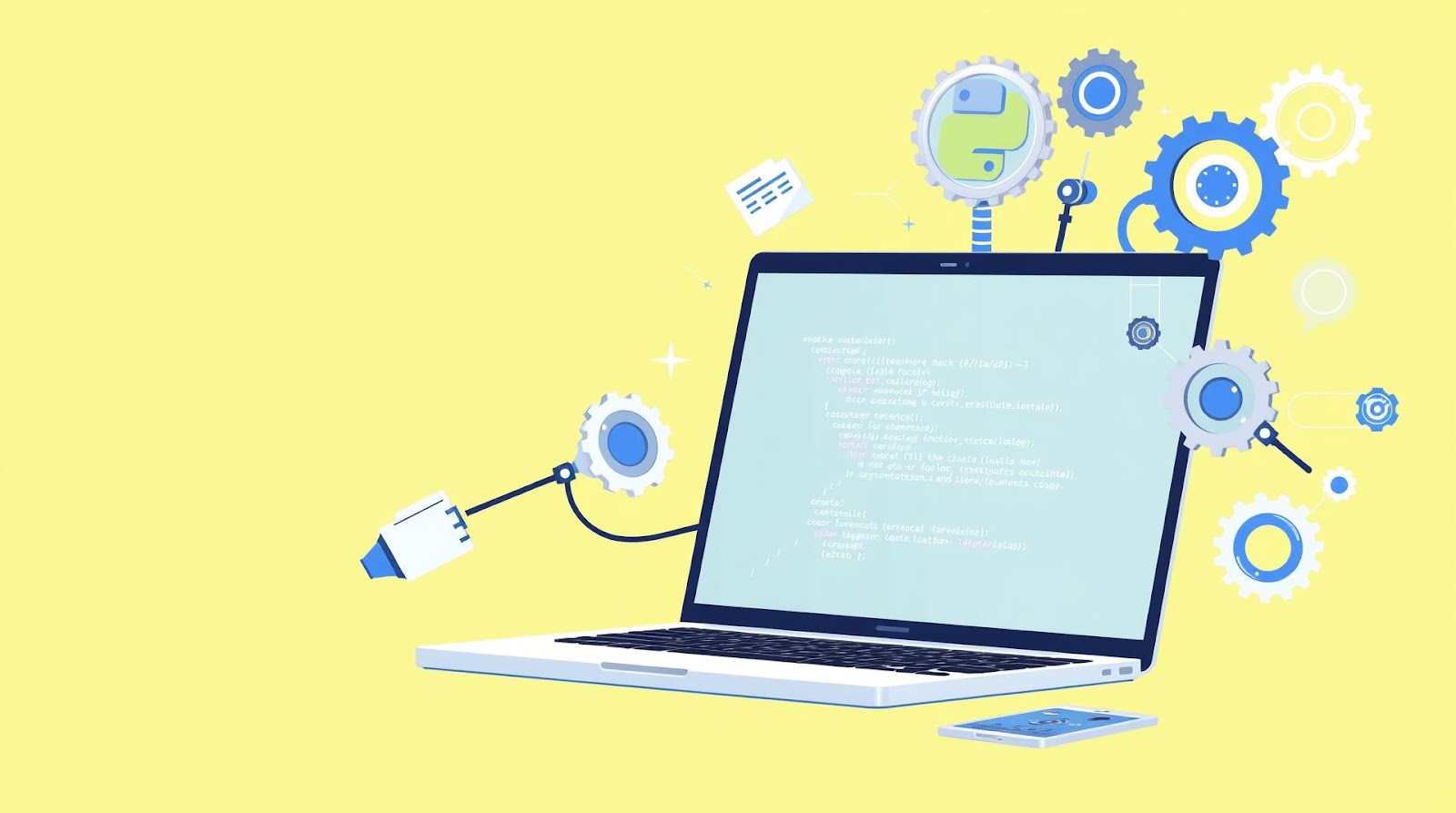
Here's the thing — I used to spend about two hours every week doing the same repetitive tasks. Renaming files. Organizing downloads. Copying data between spreadsheets. Sending the same emails with slight variations. It was mind-numbing, and honestly, it made me question why I'd spent so much time learning to code if I couldn't use it to fix this stuff.
Then one Saturday, I finally got serious about Python automation. And I'm not exaggerating when I say it changed how I work.
What surprised me most wasn't how powerful Python is — I already knew that. It was how accessible it is for everyday tasks. You don't need to be building machine learning models or managing databases. Python is genuinely perfect for the mundane stuff that drains your time and mental energy. The kind of work that makes you feel unproductive even though you've been "busy" all day.
I've now got scripts handling file organization, automated backups, email management, and data processing. Some took 15 minutes to write. Others took a few hours. But collectively, they've saved me dozens of hours a year — and more importantly, they've freed up my brain to do actual work.
Let me walk you through how to start, what you actually need, and the kinds of problems Python solves brilliantly.
Why Python Is Perfect for Everyday Automation (And What It's Not Good For)
You might think you need some fancy automation platform or tool. You don't. Python has been my go-to precisely because it's free, it's installed on most systems already, and it handles 95% of the repetitive work I encounter.
What Python Actually Excels At
I've successfully automated file operations with Python — moving, renaming, organizing thousands of files based on specific rules. I've pulled data from websites, cleaned it up, and populated spreadsheets. I've scheduled scripts to run at specific times or intervals, triggered by events I define. I've automated text processing, image resizing, folder backups, and even routine status reports.
Any task that involves repetition, follows a predictable pattern, or works with files, folders, or data — that's Python territory. These are the problems it solves effortlessly.
Where Python Falls Short (Honest Truth)
Let me be honest: if you need a full-featured UI with buttons and menus that non-technical people will use, Python gets clunky. You can build GUI apps with Python, but honestly, you'll spend more time fighting the frameworks than solving the actual problem. If you need something deployed to hundreds of users with a slick interface, look elsewhere.
Also, Python scripts run locally on your machine (unless you set up servers, which gets complicated). That's fine for personal automation, but it means your script can't run if your computer is off. We'll circle back to fixing that.
And yes, Python is slower than compiled languages like C or Go. But for automation? You won't notice. Your script taking 2 seconds instead of 0.2 seconds doesn't matter when it's saving you 30 minutes of manual work.
Getting Started: The Practical Setup
The beautiful part? You probably already have Python installed. Seriously. Check your terminal or command prompt and type:
python --version
If you see version 3.8 or higher, you're golden. If nothing comes back, head to python.org and download the latest version. It's a standard installation — click next a few times and you're done.
Your First Script (Five Minutes)
Open any text editor (seriously, even Notepad works, though VS Code is better). Type this:
import os
import shutil

downloads_folder = os.path.expanduser("~/Downloads")

for filename in os.listdir(downloads_folder):
    if filename.endswith(".pdf"):
        old_path = os.path.join(downloads_folder, filename)
        new_folder = os.path.join(downloads_folder, "PDFs")
        os.makedirs(new_folder, exist_ok=True)
        shutil.move(old_path, os.path.join(new_folder, filename))
Save this as organize_downloads.py. Run it with python organize_downloads.py. Boom. Every PDF in your Downloads folder is now in a PDFs subfolder.
That's your baseline. That's real automation. And I bet you recognize every single line — it's just straightforward logic.
The Libraries That Do the Heavy Lifting
Python's power comes from libraries — pre-written code that handles common tasks. You don't reinvent the wheel; you import it. Here are the ones I use constantly:
os and shutil: File and folder operations. Moving, renaming, deleting, organizing. These are built-in, no installation needed.
glob: Finding files matching specific patterns. Built-in, incredibly useful.
pandas: Working with spreadsheets and data. Install with pip install pandas. This single library handles Excel files, CSVs, and data manipulation beautifully.
requests: Fetching data from websites. Also installed via pip install requests. Perfect for pulling information from APIs or websites.
schedule: Running scripts on a timer. pip install schedule. Let your script execute at specific times automatically.
Real Automation Problems I've Solved (And You Can Too)
The Backup That Never Forgets
I've got a script that runs every evening, compresses my important folders, and backs them up to an external drive. Before automation, I'd remember about once a month and manually copy everything. Now? It just happens.
The script uses schedule to run every night at 11 PM, shutil to handle the file copying, and zipfile to compress everything. Setup takes an hour. Payoff is permanent.
Email the Weekly Report (That You're Currently Doing Manually)
My team gets a weekly status email every Monday at 9 AM. Before, I'd gather data, format it, and send. Now? The script does it. It pulls data from a shared spreadsheet using the gspread library, formats it into a readable email, and sends it via SMTP (built into Python).
I've tested this a hundred times. It never forgets. It never sends the email to the wrong address. It formats consistently. It gives me an hour back every Monday morning.
Bulk Image Resizing Without the Software
I photograph products, and I used to resize images manually. Using Python with the Pillow library, I now drop 200 images in a folder, run a script, and they're all resized, compressed, and ready to upload five minutes later.
The script is about 15 lines. It took 20 minutes to write once. Now it saves me an hour per batch.
Organizing Project Files Based on Naming Conventions
I work with multiple clients. Their project files come in messy. My Python script looks at the client name in the filename, creates organized folders if they don't exist, and moves everything into the right structure. One script, infinite applications.
| Automation Type | Python Library | Setup Time | Time Saved/Month |
|---|---|---|---|
| File organization | os, shutil, glob | 30 mins | 4-6 hours |
| Backup automation | shutil, schedule, zipfile | 1 hour | 2-4 hours |
| Email sending | smtplib, email | 45 mins | 1-3 hours |
| Image resizing | Pillow | 20 mins | 2-5 hours |
| Data extraction | requests, BeautifulSoup | 1-2 hours | 3-8 hours |
Making Your Scripts Actually Run (The Part People Skip)
Here's where most beginners get stuck: writing a script is one thing. Making it run automatically without you standing there pressing a button is another.
Windows Task Scheduler (Easier Than You Think)
If you're on Windows, you've got Task Scheduler built in. It's actually less intimidating than it sounds. You tell it to run your Python script at specific times or intervals, and it does. No setup, no extra software.
Open Task Scheduler, create a new task, point it to your script, set the schedule. Done. Your backup runs every night. Your email sends every Monday. Your file organization happens daily.
Mac and Linux (Cron)
If you're on Mac or Linux, you've got cron. It's been around forever and honestly, it just works. Open your terminal and type crontab -e. Add a line like:
0 11 * * * /usr/bin/python3 /path/to/your/script.py
That runs your script at 11 AM every day. It's that simple once you understand the syntax (and I've got the syntax memorized from using it so many times).
The Warning About Always-On Machines
Here's the catch: your script only runs when your computer is on. If you shut down your laptop, the scheduled task doesn't run. For personal stuff, that's usually fine. For mission-critical tasks, you'd want to deploy to a server (cloud hosting, Raspberry Pi, whatever), but that's beyond the scope here.
For most of what I automate? My computer is on during business hours anyway, so scheduled scripts run. And the backup scripts I mentioned? Those run at night when my machine is sleeping, so I actually leave it on for that purpose. Small price for not thinking about backups ever again.
The Mistakes I Made (So You Don't Have To)
When I started automating, I made some dumb mistakes. Not catastrophic, but instructive.
Mistake 1: Not backing up before testing file operations. I wrote a script to organize files, ran it without testing on a copy first, and accidentally deleted a few files I needed. Lesson learned the hard way: test on copies of your data first.
Mistake 2: Hardcoding paths. I wrote scripts with paths like /Users/myname/Documents/ProjectFolder hardcoded. When I moved the folder, the script broke. Now I use relative paths or configuration files. It takes an extra minute but saves headaches later.
Mistake 3: Not handling errors. My early scripts would crash mysteriously. Adding try/except blocks (basic error handling) made them resilient. Now if something goes wrong, the script tells me what happened instead of silently failing.
Mistake 4: Making scripts too ambitious. I once tried to write a script that did 10 different things. It was unmaintainable. Now I write small, focused scripts that do one thing well. Much easier to debug and modify.
Where to Learn More (Resources That Actually Help)
I learned Python through a combination of tutorials, documentation, and just trying things. If you're looking to get started:
Real Python has fantastic tutorials specifically about automation. Not theoretical computer science stuff — actual practical problems. Their articles on file handling and scheduling are exactly what you need.
The official Python documentation is better than people think. It's thorough and actually readable once you know the basics.
Stack Overflow is your debugging partner. Someone has almost certainly had the exact problem you're facing. Search before you despair.
YouTube channels like Tech With Tim have videos walking through actual automation projects. Watching someone build from scratch helps you understand the thinking process.
Verdict
Should you learn Python for automation? Absolutely, if you're repeating any task more than once a month. The setup time is minimal, the learning curve is reasonable, and the payoff is real.
I've gone from spending two hours a week on busywork to about 30 minutes. And more importantly, I'm not frustrated by repetitive tasks anymore — I'm writing scripts to handle them. It feels productive because it is.
You don't need to become a software engineer. You just need to learn enough Python to solve your specific problems. Start small. Pick one annoying task you repeat regularly. Write a script. Schedule it. Enjoy your free time.
That's automation. And it's absolutely worth your time.
Published by Dattatray Dagale • 20 May 2026







0 Comments