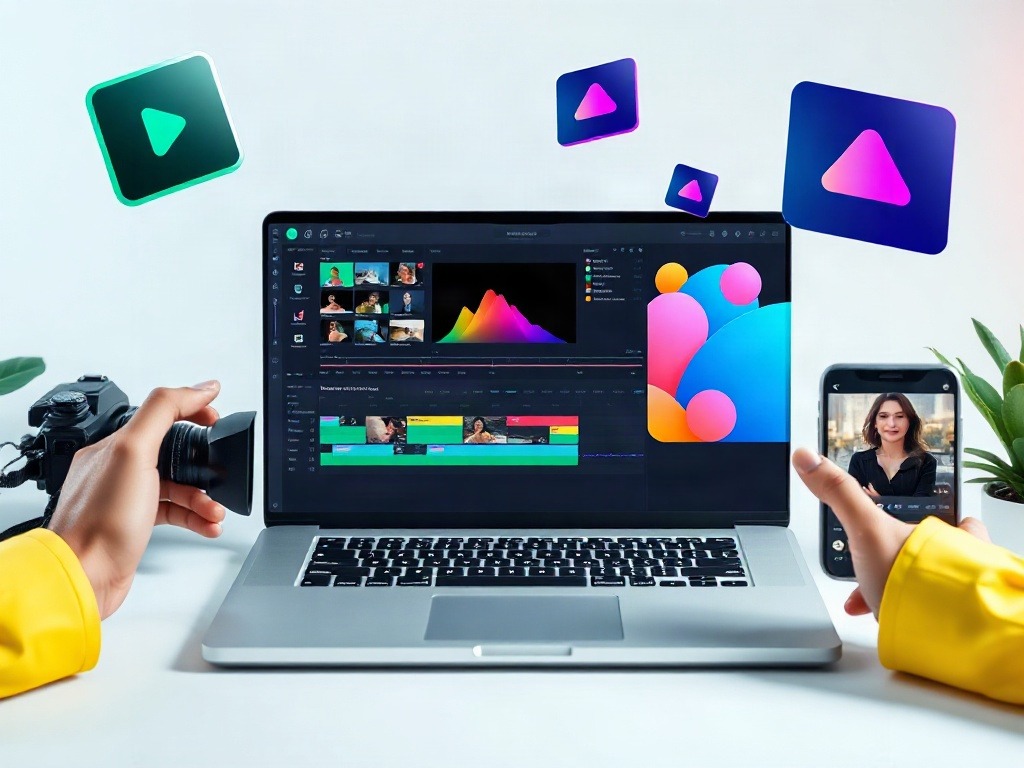
I spent three hours last week watching a friend try to use DaVinci Resolve. They kept clicking through menus looking for a simple fade transition, getting frustrated, and eventually going back to their phone's built-in editor. The software wasn't bad — it's actually industry-standard — but it was completely wrong for what they needed.
This is the problem with video editing advice. Most reviews throw a dozen options at you without asking the real question: what are you actually trying to make?
I've tested every major free video editor over the past two years — while making YouTube scripts, editing client testimonials, cutting Instagram Reels, and building social media content. I've hit the walls of each one. I've also discovered which ones are actually worth your time, and which ones are just downloaded and forgotten.
Let me walk you through the real experience of using these tools. Not the marketing version. The actual frustrations, unexpected wins, and why some of them deserve your attention.
CapCut: Why Beginners Actually Stick With This One
CapCut is the weird exception. It's made by a Chinese company (ByteDance), it's genuinely free with no watermarks, and it works on desktop, mobile, and even web. I used to assume it was a data harvesting operation in disguise, but after months of using it, I've stopped looking over my shoulder (though privacy-conscious users should check their settings).
Here's how I actually use it:
Step 1: Import and organize
I open CapCut, create a new project, and drag video files directly onto the timeline. It accepts MP4, MOV, WebM — basically everything I throw at it. The interface doesn't feel cluttered because the tools are organized logically on the right sidebar. No nested menus hunting.
Step 2: Basic cuts and trimming
I double-click on the video clip to select it. The playhead shows exactly where I am. Ctrl+B to split at any point. Delete unwanted sections. This part is genuinely intuitive — it takes maybe 30 seconds to understand.
Step 3: Transitions and effects
Click the "Transition" tab (top right). There are pre-built transitions — fade, wipe, blur zoom. I drag one between two clips. They auto-align and play instantly. I could be wrong, but I think this is where CapCut wins against Resolve for beginners. The friction is gone.
Step 4: Audio editing
This surprised me. I right-click on the video track and can extract audio as a separate layer. I can then lower the original audio volume, add background music from the library (yes, they have free stock music), and adjust timing. It's not Audacity-level, but it's more than enough.
The honest friction points
CapCut crashes occasionally on complex projects with 15+ layers. The export options are limited — you can't choose custom resolutions easily (it defaults to whatever your timeline is set to). And the free stock library, while useful, cycles out content. I've had projects where my music track disappeared because the song got removed.
But here's the thing: these aren't dealbreakers for someone making TikToks, Instagram Reels, or YouTube Shorts. They're only problems if you're making something longer and more complex.
DaVinci Resolve: The Professional Tool That Bites Back
DaVinci Resolve is free. It's powerful. And it's absolutely overkill for most beginners.
I keep coming back to it because I genuinely need some of its features — color correction, motion tracking, noise reduction — but every time I open it, I remember why beginners hate it.
Here's my actual workflow when I use Resolve:
Step 1: Import media and create a project
Open Resolve. Click "Create New Project" and name it. So far, so normal. But then you're dumped into the Edit tab with what feels like 47 panels. The media browser is on the left. The timeline is at the bottom. The inspector is on the right. It's a lot.
Step 2: Drag clips to the timeline
I select my video file in the media panel and drag it to the timeline. This works fine. I can add multiple clips, arrange them. Standard editing workflows — cutting, trimming — are doable. I press Ctrl+K to cut clips, Delete to remove them.
Step 3: Where it gets messy
I want to add a transition. I should go to the Fusion tab or use the Transitions panel. But the Transitions panel isn't immediately visible. I have to customize my workspace. Or I remember there's a Transition button in the toolbar, but only if I'm using the right view. Used to think the software was broken. Turns out I just needed to know where to look.
Step 4: Color correction (where it shines)
Here's why professionals use Resolve. I click the Color tab, and suddenly I have tools that feel designed by people who know what they're doing. I can adjust shadows, highlights, saturation per color channel. The Curves tool is powerful. The interface actually makes sense in this tab because it's designed for this specific workflow.
When Resolve makes sense for beginners
Honestly? Rarely. Only if you're specifically interested in learning color grading, or you're working with high-end footage that needs it. If you're editing vlogging content or social media videos, the learning curve isn't worth the payoff.
The real problem with Resolve
It assumes you know what you're doing. The menus don't hold your hand. There's no "undo that workflow confusion" button. I've watched beginners open Resolve, panic, and close it within five minutes. That's not on them — it's the software.
That said, if you want to actually learn video editing properly, Resolve is where you should end up. It's just not where you should start.
Other Options Worth Knowing About
Shotcut: The Swiss Army knife that nobody uses
Shotcut is free, open-source, and runs on Windows, Mac, and Linux. I tested it expecting a clunky experience. Turns out it's competent.
You import a file, drag it to the timeline, add transitions from the left panel. It supports an insane number of formats — basically everything. The timeline is clear. The effects are organized.
So why doesn't anyone use it? I think it's because there's no momentum. CapCut has the social media crowd. DaVinci Resolve has the YouTube tutorials. Shotcut sits in the middle doing everything reasonably well and nothing exceptionally well. It's not broken. It's just invisible.
Worth it if: You're on Linux, or you need absolute control over video formats and codecs. Otherwise, CapCut is faster to learn.
OpenShot: Lightweight but limited
I tested OpenShot expecting another capable open-source editor. It's lighter than Shotcut, which is good if your computer is old. The timeline interface is clean.
But the effects library is smaller. The transitions feel fewer. And it crashed twice during my testing on a 4-minute project. Not a deal-breaker, but it reminded me why I stick with the other options.
Worth it if: You have an older laptop and just need basic cutting, transitions, and audio adjustments. Don't expect it to handle complex projects.
Lightworks: The professional-grade surprise
Lightworks is actually used in some Hollywood productions. The free version is genuinely capable. But here's the thing — it's so professional that it makes DaVinci Resolve look approachable. The interface is dense. The learning curve is steep. I got through 20 minutes of exploring and realized I was spending more time learning the software than making videos.
Worth it if: You're planning to work in film production professionally. For hobby video making? Hard pass.
| Software | Best For | Learning Curve | Stability | Output Quality |
|---|---|---|---|---|
| CapCut | Social media, Reels, quick edits | Very gentle | Solid (crashes on complex projects) | Good for web |
| DaVinci Resolve | Learning proper editing + color grading | Steep | Excellent | Broadcast-quality |
| Shotcut | Format flexibility, niche projects | Moderate | Good | Excellent |
| OpenShot | Lightweight editing, older computers | Very gentle | Moderate (occasional crashes) | Good |
| Lightworks | Professional film editing | Very steep | Excellent | Broadcast-quality |
My Take: Which One Should You Actually Start With
I used to recommend DaVinci Resolve for everyone because "it's professional and free." I was wrong. That advice worked great if someone was already interested in video production. For everyone else, it was friction disguised as quality.
CapCut surprised me. I expected it to be shallow and gimmicky. Instead, it's thoughtfully designed for people making short-form content. The auto-captions work. The transitions are immediate. The export happens without philosophical questions about codecs and frame rates.
Here's what actually happened when I recommended each software to different people: The friend who makes Instagram Reels? CapCut in one week. Comfortable. Making content. The person interested in YouTube production? DaVinci Resolve took three weeks of YouTube tutorials before they stopped asking "where's the button for X." The hobbyist on an old laptop? Shotcut worked fine, but they'd have been happier with CapCut anyway.
The disconnect I see everywhere is that beginners get treated like they need to learn a "real" tool. They don't. They need to make something, feel capable, and keep going. CapCut does that. DaVinci Resolve teaches you things you might not need yet.
I'm recommending CapCut for 95% of people reading this. If you're specifically interested in color grading or working with 4K raw footage, Resolve is your next step.
Verdict
Start with CapCut. Download it today. Make a video. Feel what video editing actually feels like without the overwhelming interface.
If you find yourself wanting more control over colors, audio mixing, or advanced effects after three months, graduate to DaVinci Resolve. Use YouTube tutorials (Casey Faris has genuinely good beginner guides). The learning curve will feel manageable because you already understand the basics.
Shotcut and OpenShot are solid backups if you have specific technical needs. Lightworks is professional-grade but not for this stage.
The best software is the one you'll actually use. CapCut removes the excuse to not start.
Published by Dattatray Dagale • 27 August 2026










0 Comments