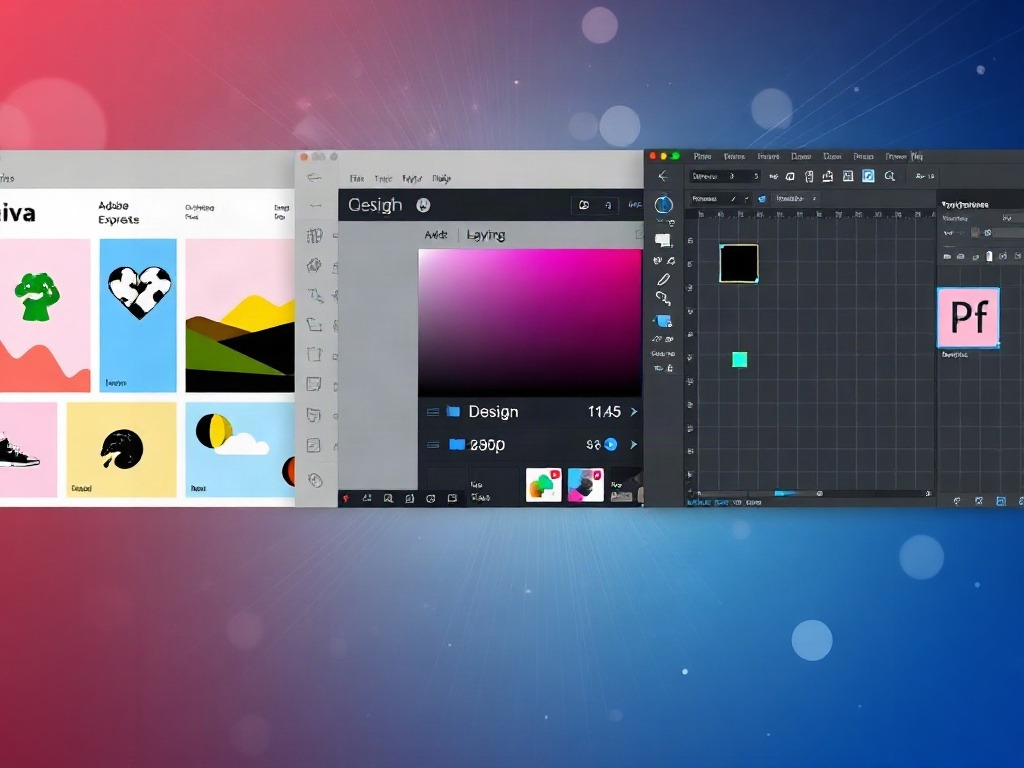
Last month, I had to design a LinkedIn banner, rebuild a portfolio website mockup, and create social media graphics for a friend's startup. Three projects. Zero budget. So I did what any person in 2025 would do: I tested all three free design tools side-by-side to see which one actually delivers.
Here's what most review sites won't tell you: all three work. But they work for completely different reasons, and picking the wrong one will waste your time.
The Setup: How I Actually Tested These
I gave myself the same three tasks in each tool:
- Design a 1200x630px social media banner with custom branding
- Create a simple product mockup or presentation slide
- Edit an existing image with text overlay and filters
I timed myself. Noted frustrations. Checked what features disappeared behind paywalls. And actually downloaded and used the final designs.
This isn't theoretical. These designs went live.
Why This Matters for You
Design tool choice is weirdly personal. What works for a social media manager will frustrate a UI designer. What takes one person two minutes might take another twenty. So instead of just listing features, I'm walking you through exactly what happens when you open each tool and try to get work done.
Canva: The Easiest Tool, But With Limits
Canva opens, and you immediately feel welcomed. The dashboard is clean. Templates appear instantly. There's no learning curve—just thousands of pre-made designs you can modify in 30 seconds.
For my LinkedIn banner task: I searched "LinkedIn banner," picked a template, changed the text to my name, swapped the background image (they have millions available for free), and I was done in under two minutes. Not exaggerating. Two minutes.
Here's where I hit friction. The fonts are limited on the free plan. The image library is decent but occasionally feels repetitive. And some templates have watermarks or premium elements locked behind the $120/year subscription.
The Workflow: Speed Over Customization
Opening Canva feels like browsing Instagram. You scroll. You click. You edit. It's built for people who don't think of themselves as designers—and that's the point. I used Canva for the social media banner because I didn't need pixel-perfect control. I needed something that looked professional, fast.
The free stock library is genuinely useful. Canva's partnership with Unsplash means you get real quality photos without hunting elsewhere. The text tools are simple but sufficient. Color picker works. Alignment is automatic.
Then you hit the paywall. Try to use certain fonts? Premium. Want a specific animation? Premium. Resize your design for a different platform? That's behind the $120/year plan now (though you can download and manually resize—annoying but possible).
Real Talk About Canva's Free Tier
I could be wrong here, but I think Canva's free plan is generous enough for most people because 80% of what you need lives in templates. The limitation isn't the software—it's your willingness to start from scratch. If you're comfortable picking a template and editing, you're fine. If you want to design from a blank canvas, you'll feel frustrated quickly.
Adobe Express: The Middle Ground That's Actually Improving
Adobe Express is the tool I wasn't expecting to like. It's positioned as the "free" version of Adobe's ecosystem, which immediately made me suspicious. Wouldn't Adobe just use this to upsell Photoshop?
Partially yes. But here's what surprised me: Express is actually different from Photoshop. It's lighter, faster, and designed specifically for quick design work—not photo editing.
I tried the product mockup task here. Adobe Express has a "Generative Fill" feature (free users get a limited number of credits per month). I uploaded a blank phone mockup, described what I wanted in the frame, and it generated three options in seconds. One of them was actually usable. I wouldn't trust it for client work, but for internal mockups or testing ideas? Surprisingly fast.
Where Adobe Express Feels Premium
The text rendering is sharper than Canva. Layout and alignment feel more intentional—less "template-y." You can actually create from a blank canvas without it feeling impossible.
The free stock library is solid. Adobe's partnership with Unsplash and other sources means you're not seeing the same images everywhere. The preset color palettes are better than Canva's—they feel more considered, less "trending on TikTok."
But (and this is important)—Adobe Express doesn't have quite as many templates as Canva. You'll design more from scratch. That's either a pro or a con depending on what you want.
The Generative AI Thing
Adobe Express gives you a handful of free generative credits monthly. I used mine on the mockup task. The results were inconsistent—sometimes useful, sometimes completely off-brand. But it's free, and it exists, which is more than Canva offers in their free tier. Figma doesn't have it at all.
I used to think AI design features were just marketing hype. Actually, for rapid iteration, they save time. Don't rely on them exclusively, but they're a decent shortcut for rough drafts.
Figma: The Professional Tool That's Free (For Now)
Figma's free tier is almost absurdly generous. Three projects. Unlimited pages per project. Full design and prototyping tools. No watermarks. The catch? Figma is designed for teams and digital products, not social media graphics or presentations. Using Figma for a LinkedIn banner feels like using a professional kitchen to make toast.
But here's the thing—I still used Figma for the website mockup task. Because it's the best tool for that job, hands down.
Opening Figma is intimidating. The interface is dense. There are panels, tools, properties, and layers. If you've used Photoshop or Sketch, you'll feel at home. If you haven't, expect a learning curve of 30-45 minutes before you're productive.
The Workflow: Precision and Control
I created a simple product page mockup in Figma. The workflow was: create frames (these are like artboards), add shapes and text, align them precisely, then export as PNG/SVG. Everything snaps to guides automatically. Typography controls are detailed. You can manage spacing with pixel-perfect accuracy.
This is what Figma does that Canva and Adobe Express don't: it treats design like code. Everything is a component. Everything is reusable. If you're prototyping a mobile app or a website, Figma is objectively better.
For a social media graphic? It's overkill. You'll waste time on precision that doesn't matter for a 1200x630px Instagram banner.
The Free Tier Limitation (And Why It Matters)
Three projects might sound limiting, but here's the nuance: one Figma project can have 30+ pages. So you can literally create a massive design system, a complete website mockup, and a product prototype—all in one project. Once you hit three projects, you either delete an old one or pay $12/month for unlimited.
Most hobbyists and freelancers I know have lived on the free tier for years by managing their projects carefully. Some delete old work. Others pay $12/month because the tool saves them time.
| Feature | Canva | Adobe Express | Figma |
|---|---|---|---|
| Best For | Social media, quick graphics | All-rounder, mockups | UI/UX, websites, apps |
| Learning Curve | None (templates) | Minimal | Steep (45+ min) |
| Free Projects | Unlimited | Unlimited | 3 projects |
| AI Features | Limited (behind paywall) | Generative Fill (limited credits) | None in free tier |
| Stock Images | Excellent (millions) | Good (curated) | None built-in |
| Collaboration | Premium feature | Limited free | Full, free, real-time |
My Take: Which One Actually Wins?
Here's my honest verdict after using all three for real work: they don't compete. They barely overlap.
Canva wins if you want to design something fast without thinking. Pick a template, edit text, done. It's social media optimized. The learning curve is negative—you learn by using it. Most people should just use Canva and stop reading here.
Adobe Express surprised me. It's the middle child that's actually getting good. Better typography than Canva. More templates than Figma. Generative AI features that Canva charges for. If I had to pick one tool for "everything," I'd pick Adobe Express. It's not the best at anything, but it's genuinely competent at everything.
Figma is for a different category entirely. You don't choose Figma because you want to design faster. You choose Figma because you're designing products—not graphics. Websites, apps, design systems. The free tier is so generous that if you're doing any of that work, there's no reason not to use it. But it's not a replacement for Canva.
What surprised me most: I expected Canva to crush everyone. It didn't. It's still the easiest, but Adobe Express is catching up fast. And Figma's free tier is genuinely ahead of where it needs to be—I think they're confident enough in their positioning that they don't mind giving it away.
Verdict: Pick Based on What You're Actually Making
Use Canva if: You're making social media posts, presentations, or graphics for non-designers. You want speed. You don't care about pixel-perfect control. You're willing to pick templates.
Use Adobe Express if: You want an all-rounder. You might make social posts one day and a product mockup the next. You want better typography and design control than Canva. You're willing to learn some new tools but don't want a steep curve.
Use Figma if: You're designing digital products, websites, or apps. You're comfortable with design software. You might collaborate with others. You value precision and reusability. You're okay with a learning curve.
All three are genuinely free with no secret paywalls that ruin the experience (though all three want your money eventually). You can't go wrong starting with any of them.
Start with Canva if you're unsure. Upgrade to Adobe Express if Canva feels limited. Move to Figma if you're doing actual product design. That's the natural progression I've watched people follow, and it works.
Published by Dattatray Dagale • 29 August 2026










0 Comments